Help
Viewer-powered spin overlay for streams
Spindle. One spin, one moment. Start in the browser, then add OBS when you go live. Platform integrations are coming soon.
Try the wheel in your browser
No account or OBS required to try it in the browser. You will have a working wheel in about two minutes.
-
Open the overlay
Go to the overlay page. Default options load automatically. A ★ badge means preview mode; that is normal.
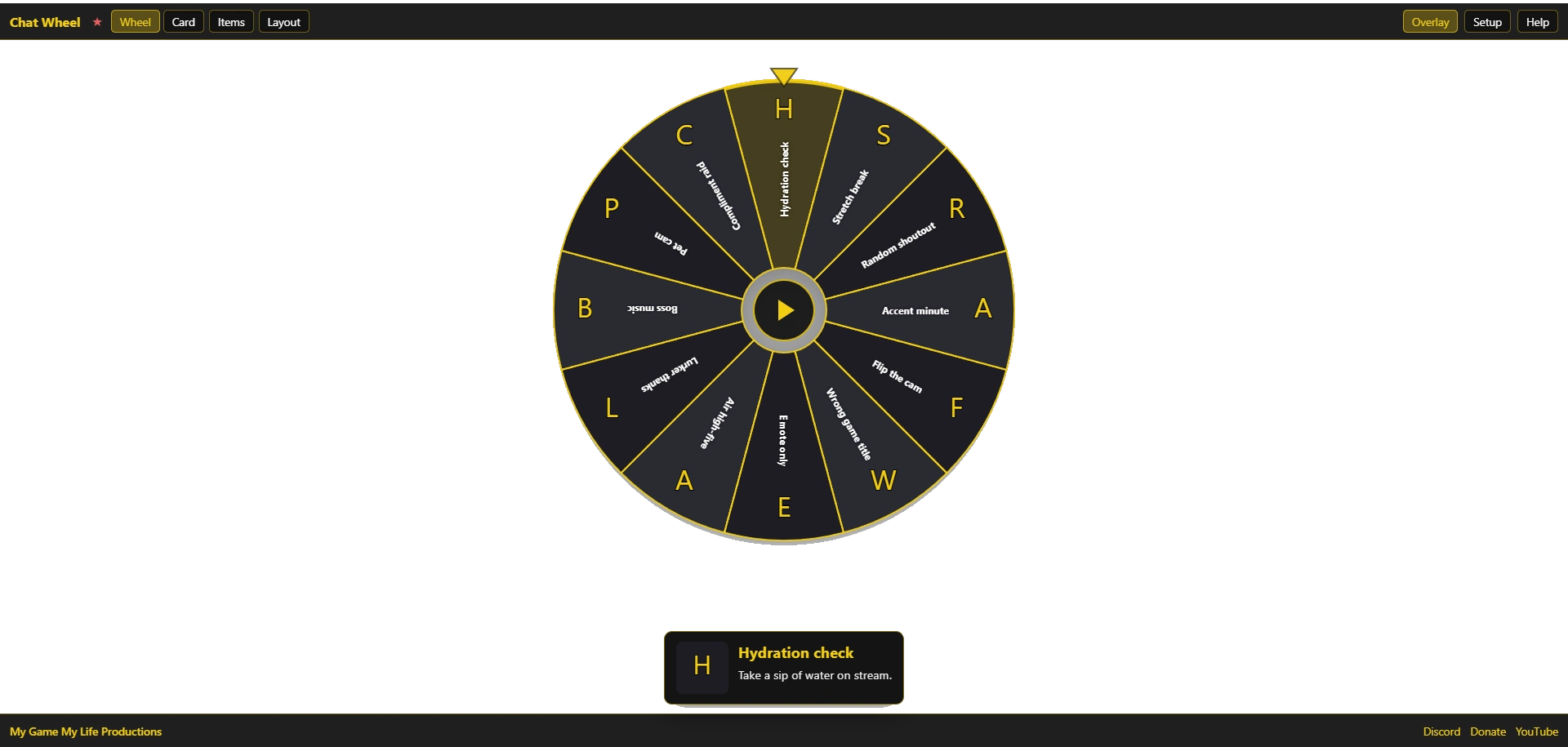 Screenshot01-overlay-home.webp
 -
Spin the wheel
Click the play button in the center. When it stops, the result card shows the winning label and description.
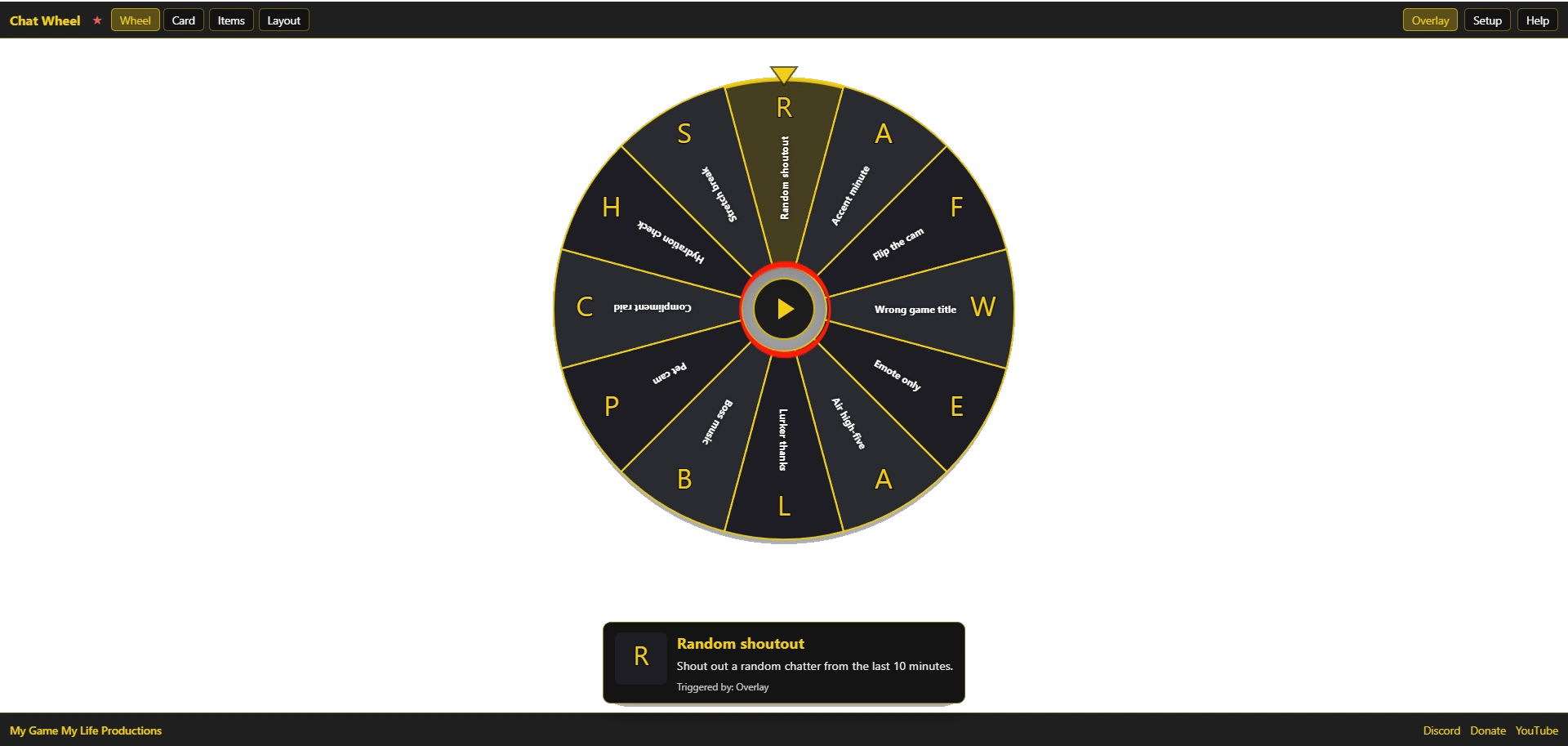 Screenshot02-spin-result.webp
 -
Edit options
Click Items in the top bar. Use On wheel to enable or disable options. Starter sets include extras you can turn on. Change labels, add descriptions, use Add option, or Remove to delete a row.
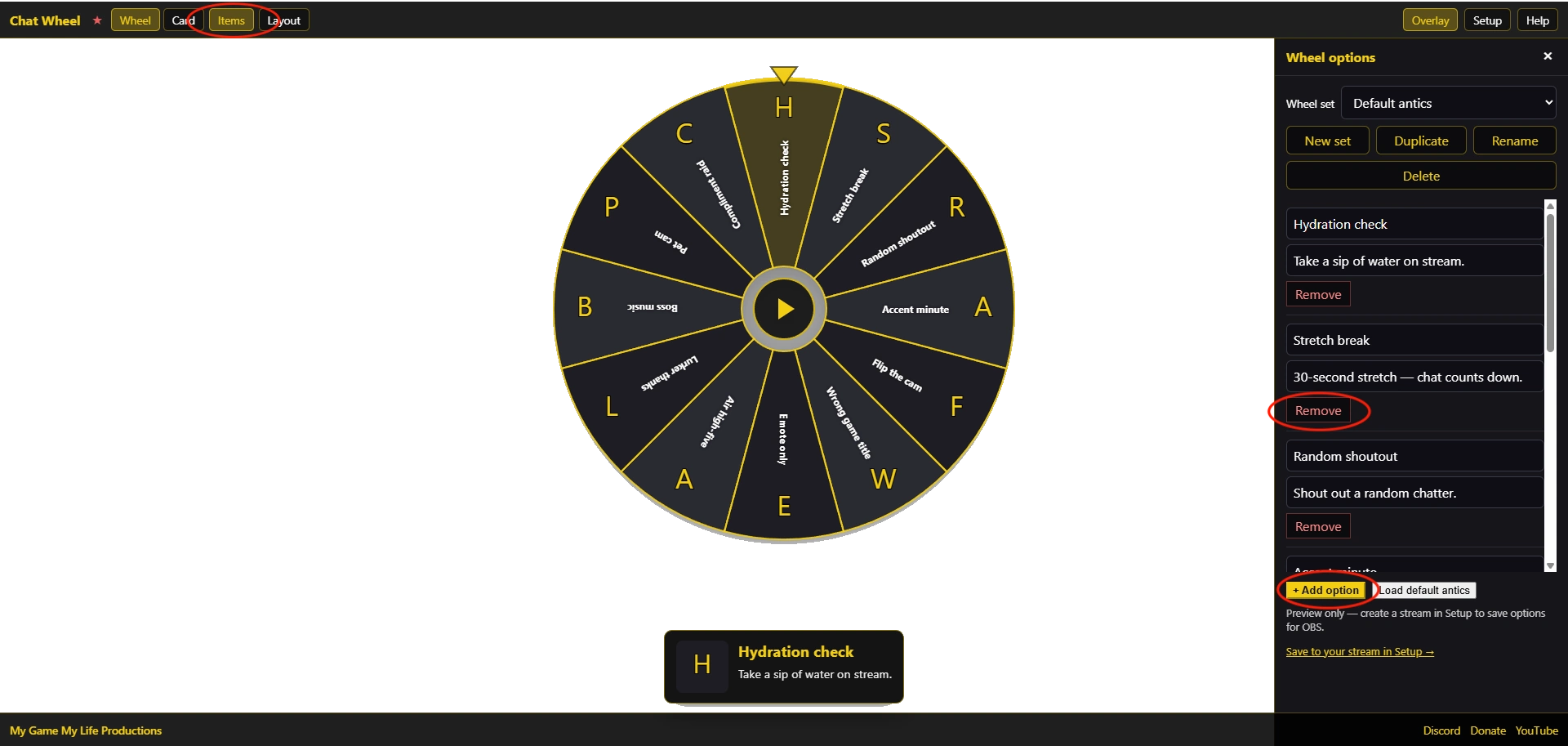 Screenshot03-items-drawer.webp
 -
Place the wheel and card
Click Layout. Pick a grid cell for the wheel and a different cell for the card. They cannot overlap (blocked cells are grayed out).
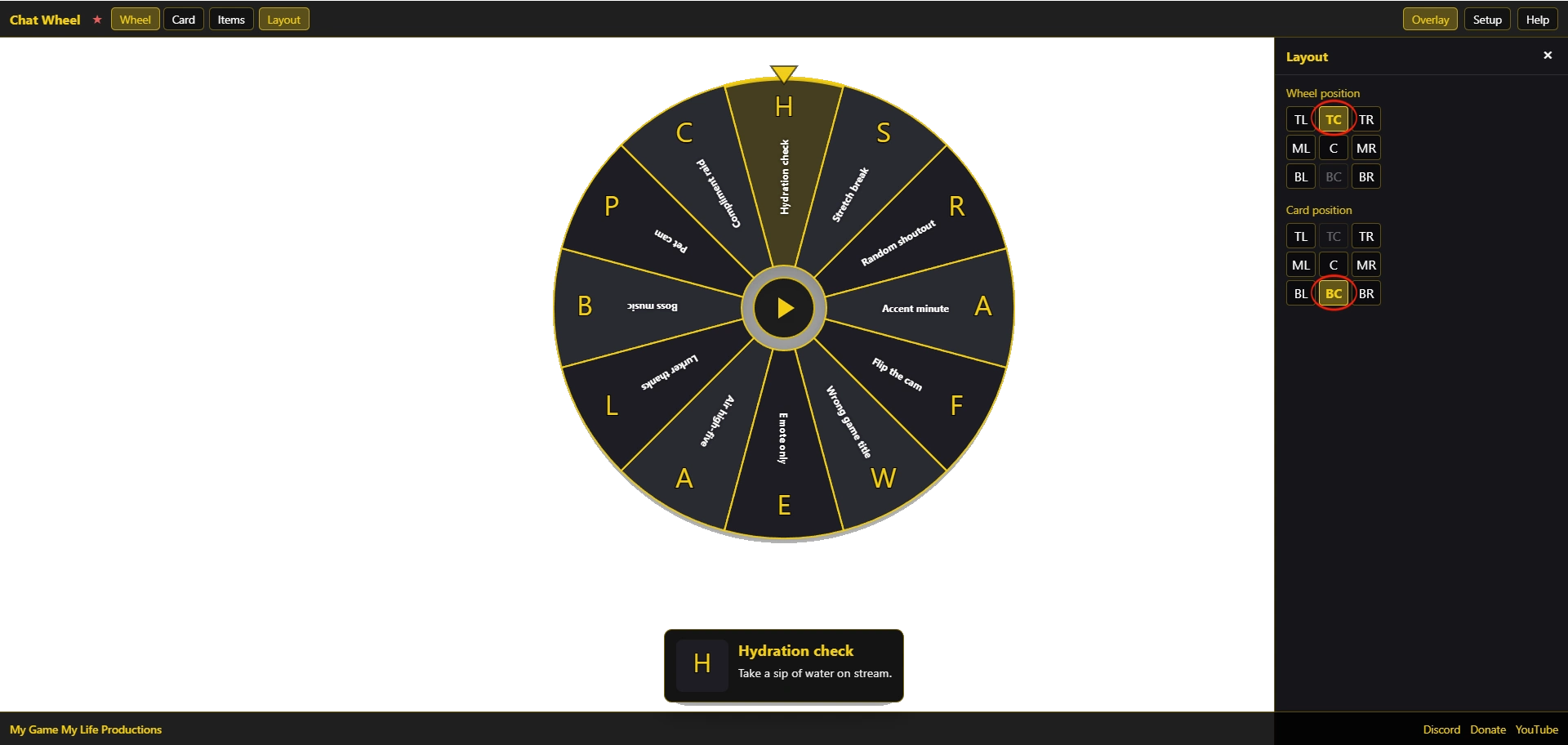 Screenshot04-layout-drawer.webp
 -
Try view modes
Use Wheel, Card, or Deck in the nav to switch views. See the Views tab for when to use each.
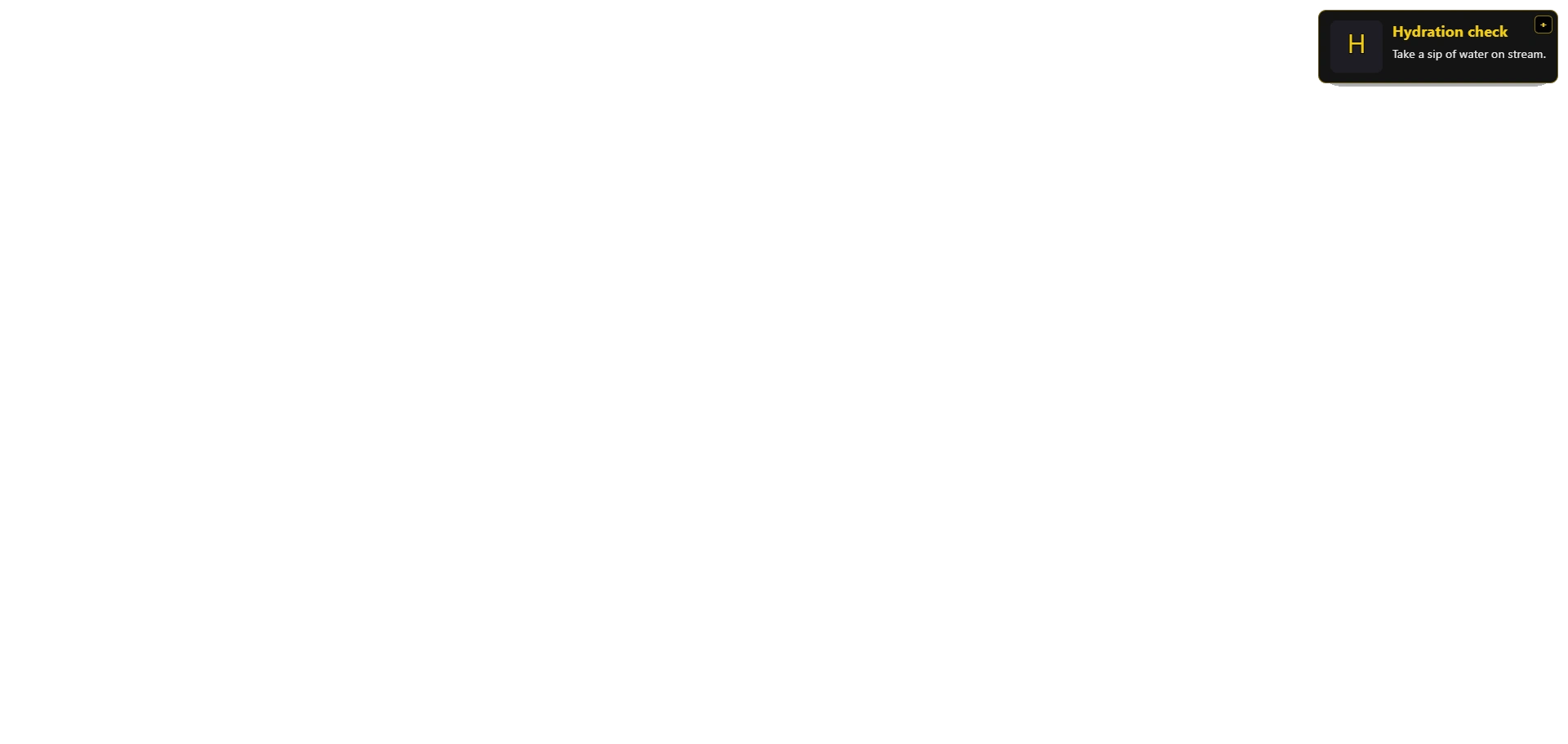 Screenshot05-view-toggle.webp (optional)
Multiple wheel sets
Each wheel set is a full wheel of options. Switch sets for different moods without rebuilding from scratch.
-
What is a wheel set?
The Wheel set dropdown in Items chooses which list of options the wheel uses.
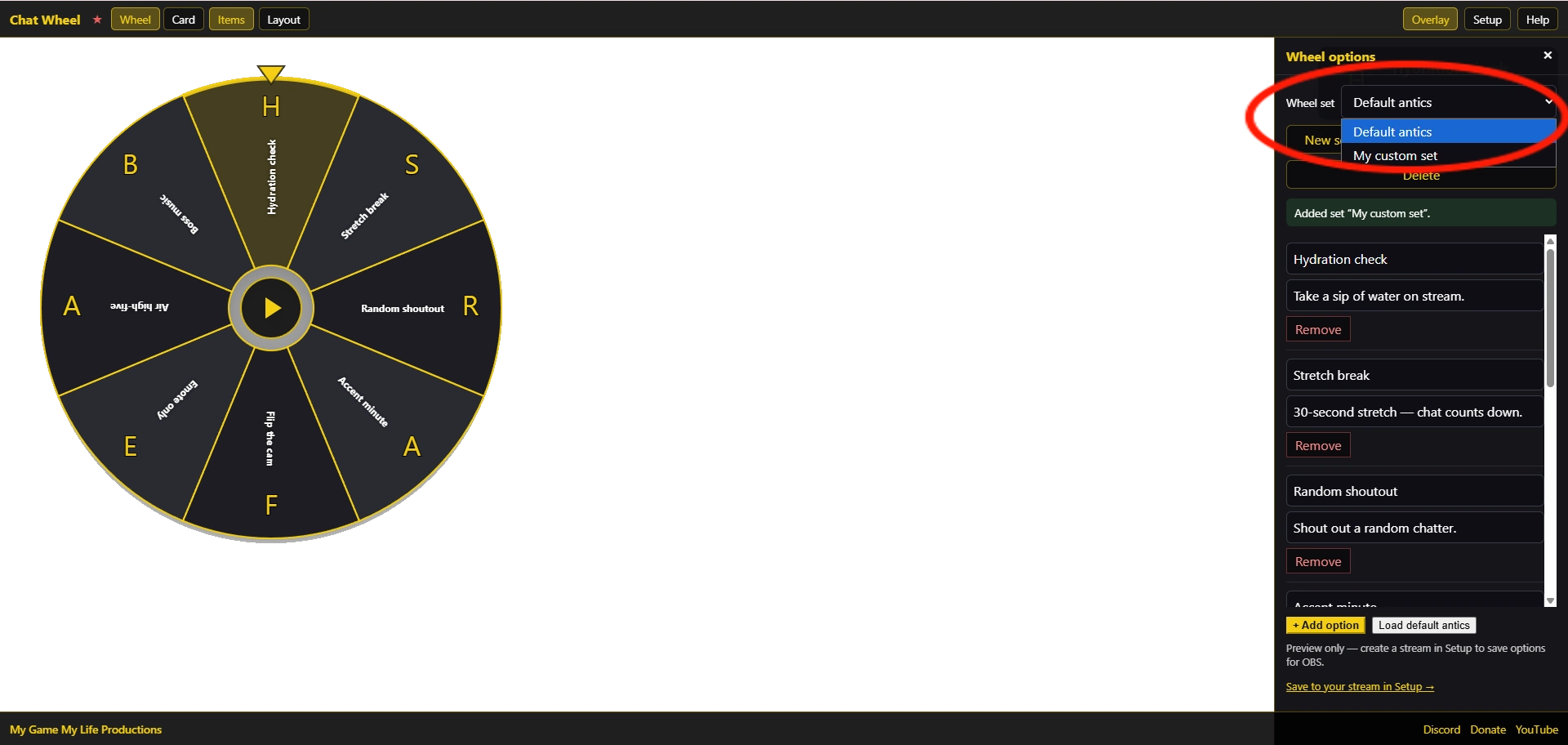 Screenshot10-sets-dropdown.webp
 -
Create and name a set
Click New set, enter a name, then Add. The new set starts empty; add options like any other set.
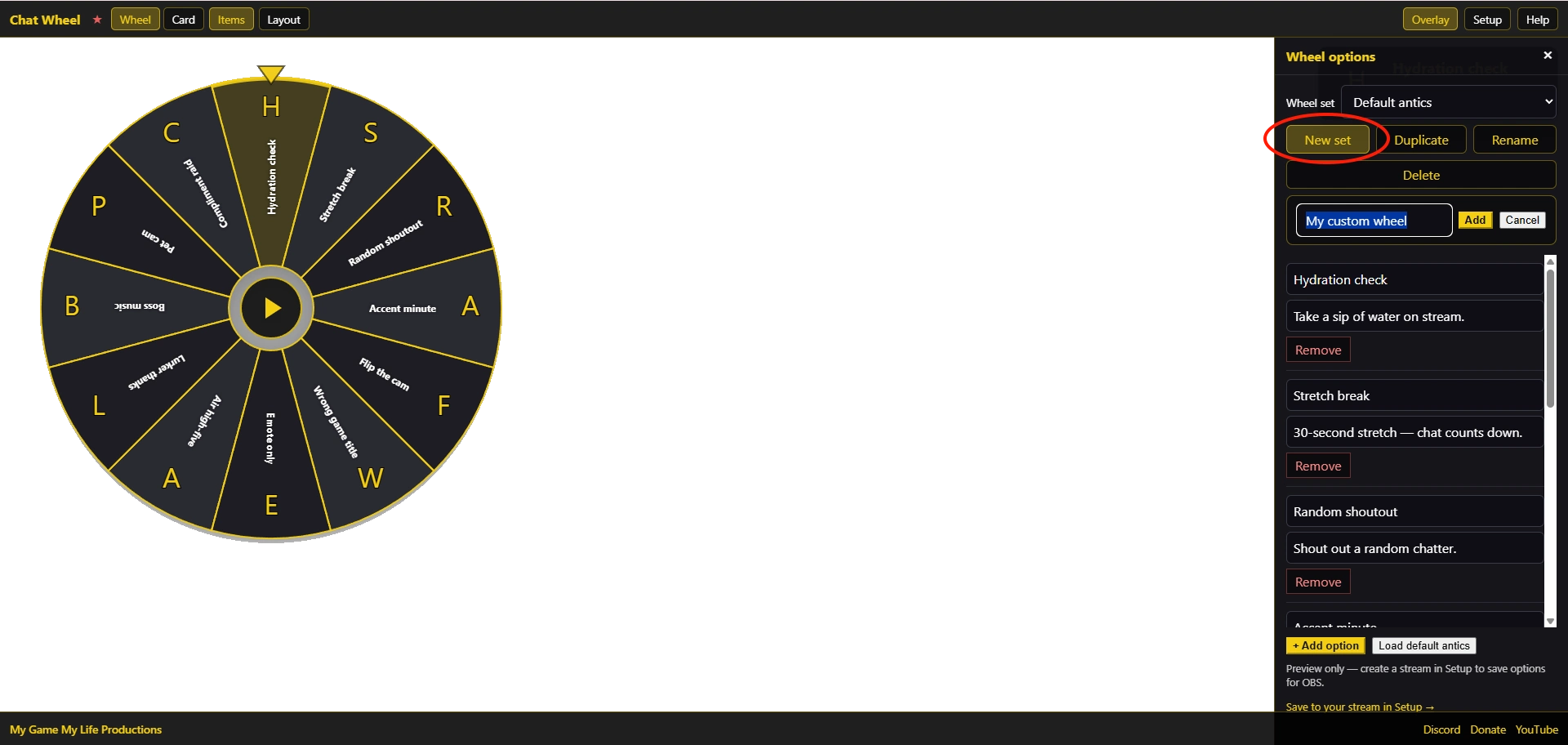 Screenshot11-new-set.webp
 -
Rename or duplicate
Rename updates the active set’s name. Duplicate copies all options into a new set, handy for a “Chaos” variant of “Chill.”
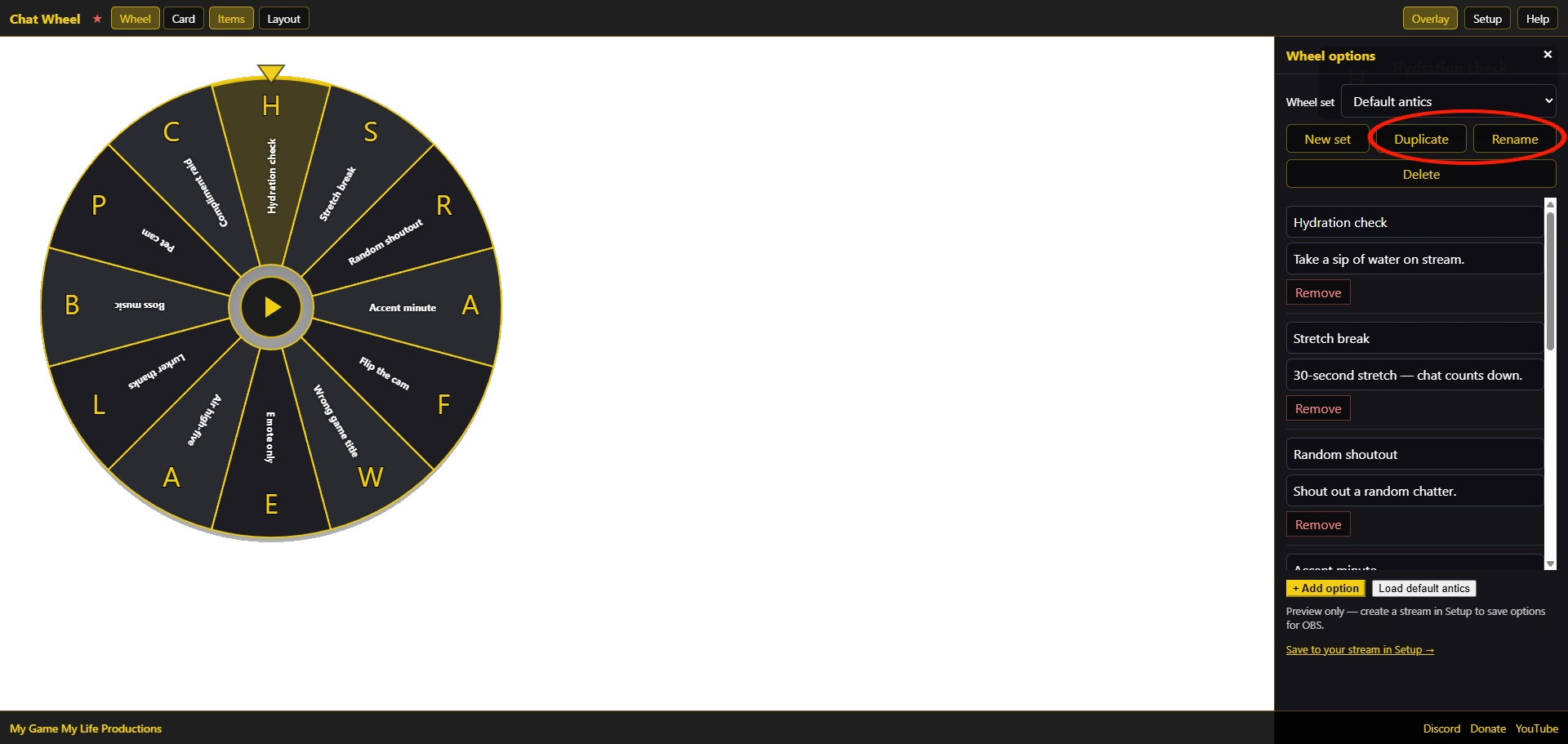 Screenshot12-rename-duplicate.webp
 -
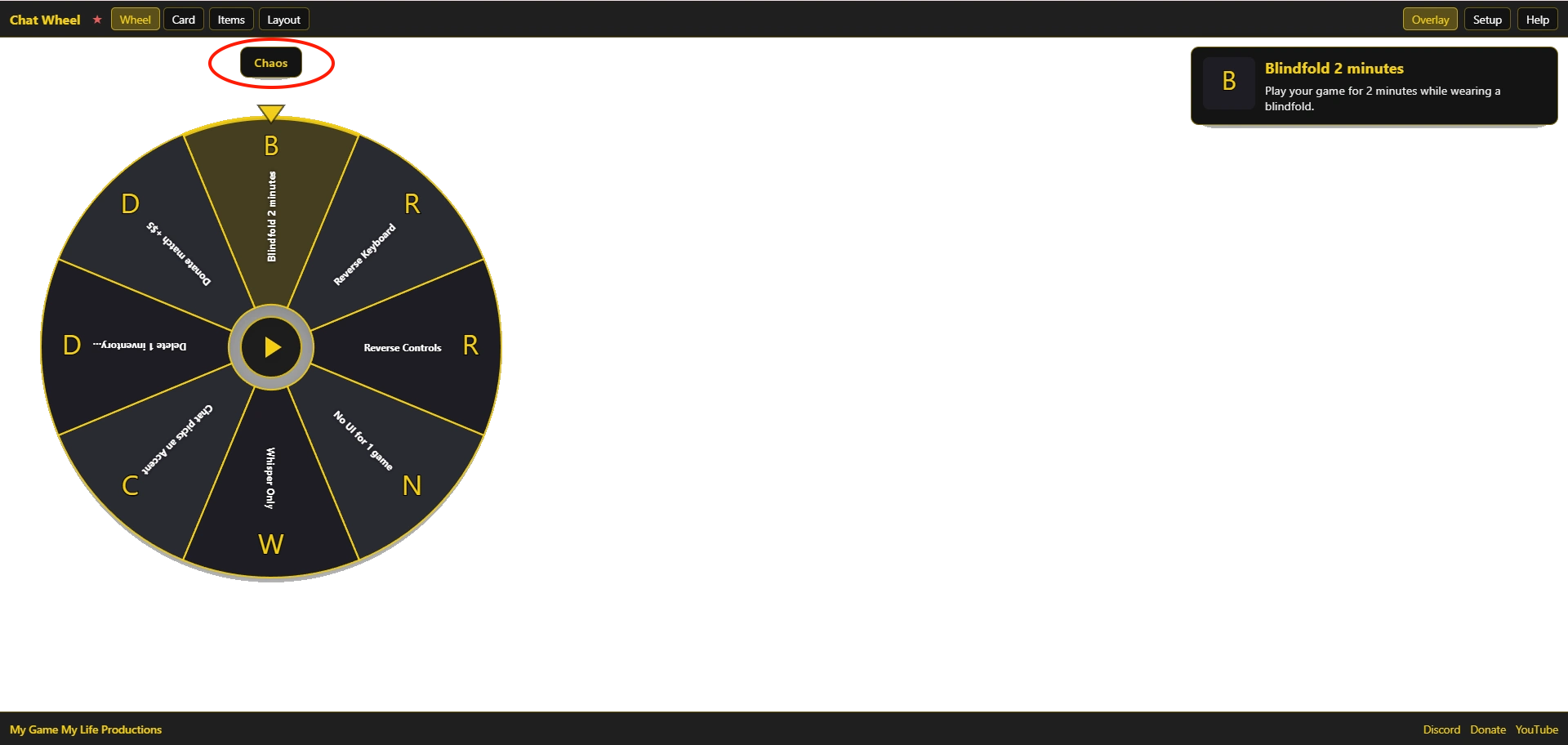
Switch during a stream
Change the dropdown before you spin. The wheel redraws with that set’s options.
 Screenshot13-switch-set.webp
 -
When to use multiple sets
Chill vs Chaos: mild options by default; swap to louder penalties for hype segments.Subathon: charity-friendly set separate from your usual wheel.Viewer picks: a set you edit when someone buys a custom line (add their option, spin, then remove later).
Wheel sets and options save automatically in this browser (local storage). The overlay and Setup share the same saved data.
Overlay views
The overlay has three view modes in the top bar: Wheel, Card, and Deck. They change what appears on stream, not your saved options or wheel sets.
Which view should I use?
| Your goal | Use | OBS hint |
|---|---|---|
| Classic wheel + result card on one layer | Wheel (default) | ?ui=0; no extra view |
| Wheel on one layer, winner card on another | Wheel + second source Card | Main URL + &view=preview&cardPos=… |
| One small picker; no wheel graphic | Deck | ?ui=0&view=deck&cardPos=mm |
-
Wheel: wheel + result card
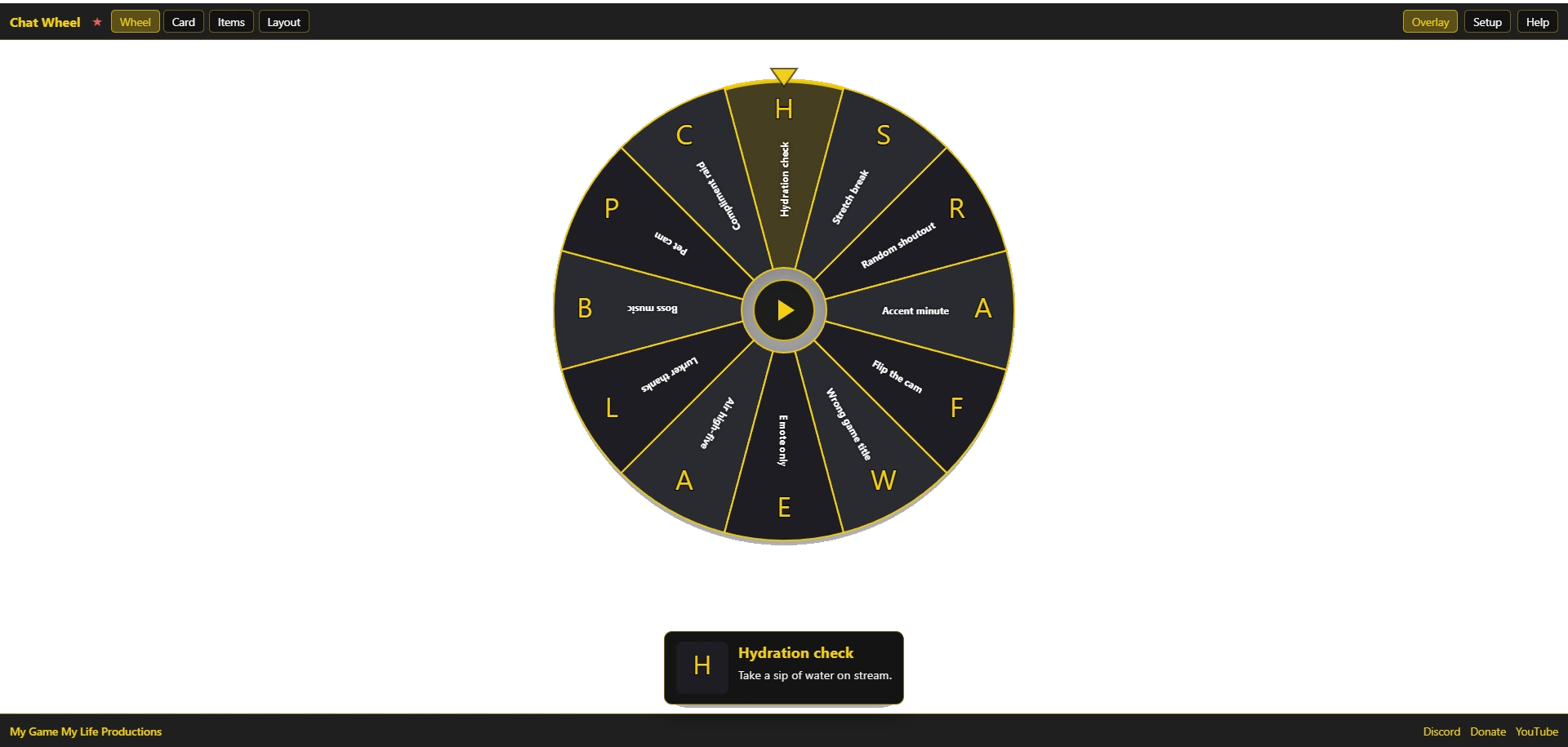
Default view. Spin with the play button on the wheel. The result card shows the winner (label, description, optional trigger line). Use Layout to place the wheel and card in different grid cells.
 Screenshot27-view-wheel.webp
 -
Card: result card only
Hides the wheel. Shows the result card after something spins the wheel, usually your main Browser Source (Wheel view) while chat watches the wheel elsewhere in the scene, or you spin manually off-stream.
The card does not include its own spin button. For OBS, add
&view=previewto the card source URL. Lock position withcardPos(e.g.cardPos=br).In the browser, clicking the result card can hide the nav for a clean preview; the + on the card brings the wheel back. On stream with
?ui=0, use URL params instead.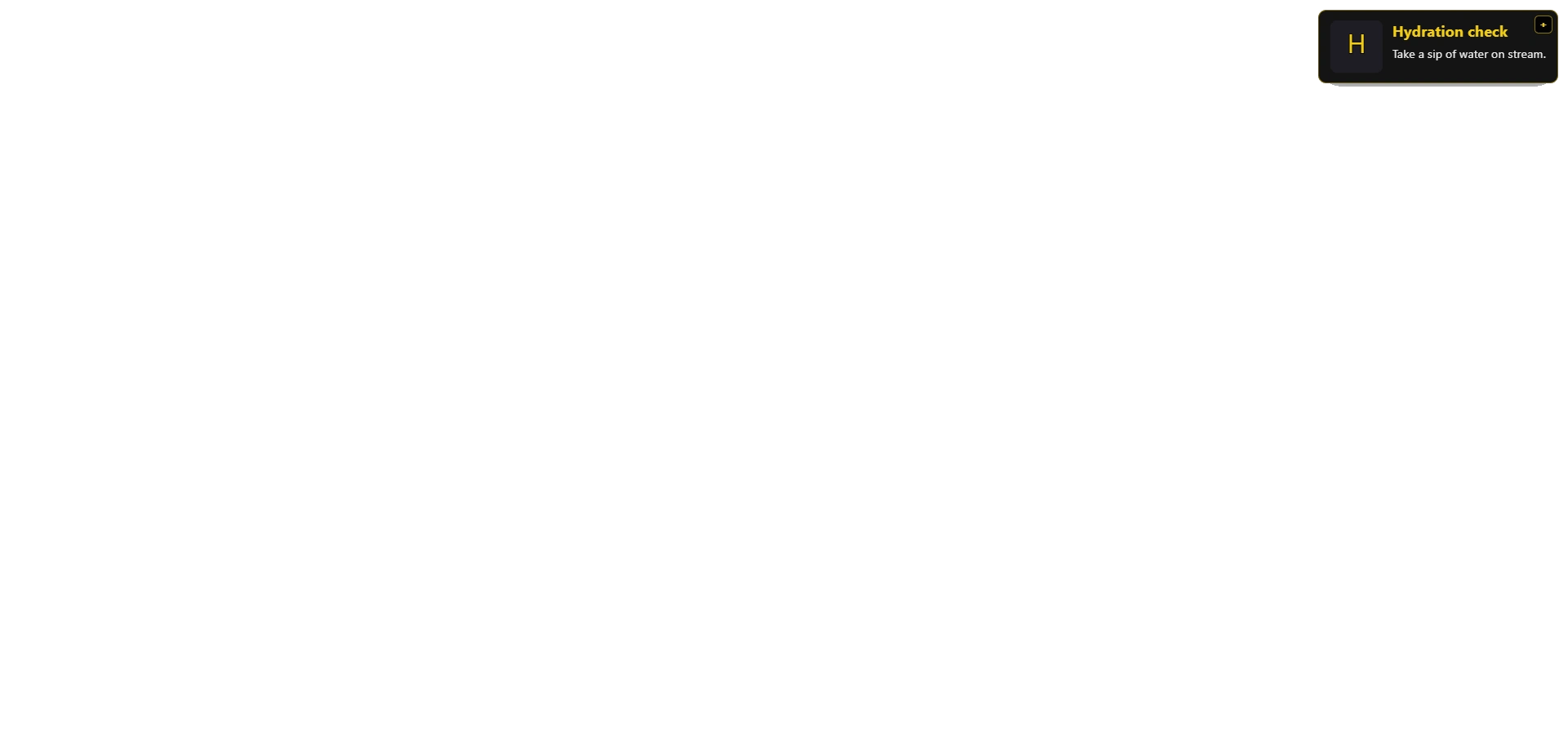 Screenshot28-view-card.webp
 -
Deck: minimal picker card
A single compact card. Tap the card or the ↻ button to cycle options and land on a random winner; no wheel canvas. Footer row: spin on the left, hint in the center, + on the right (returns to Wheel view in the browser). While spinning, the hint and buttons hide and a progress bar shows instead.
Best for one Browser Source in a corner. Use
&view=deckandcardPos(center is common:cardPos=mm). In Deck mode, Layout only moves the card; wheel position is ignored.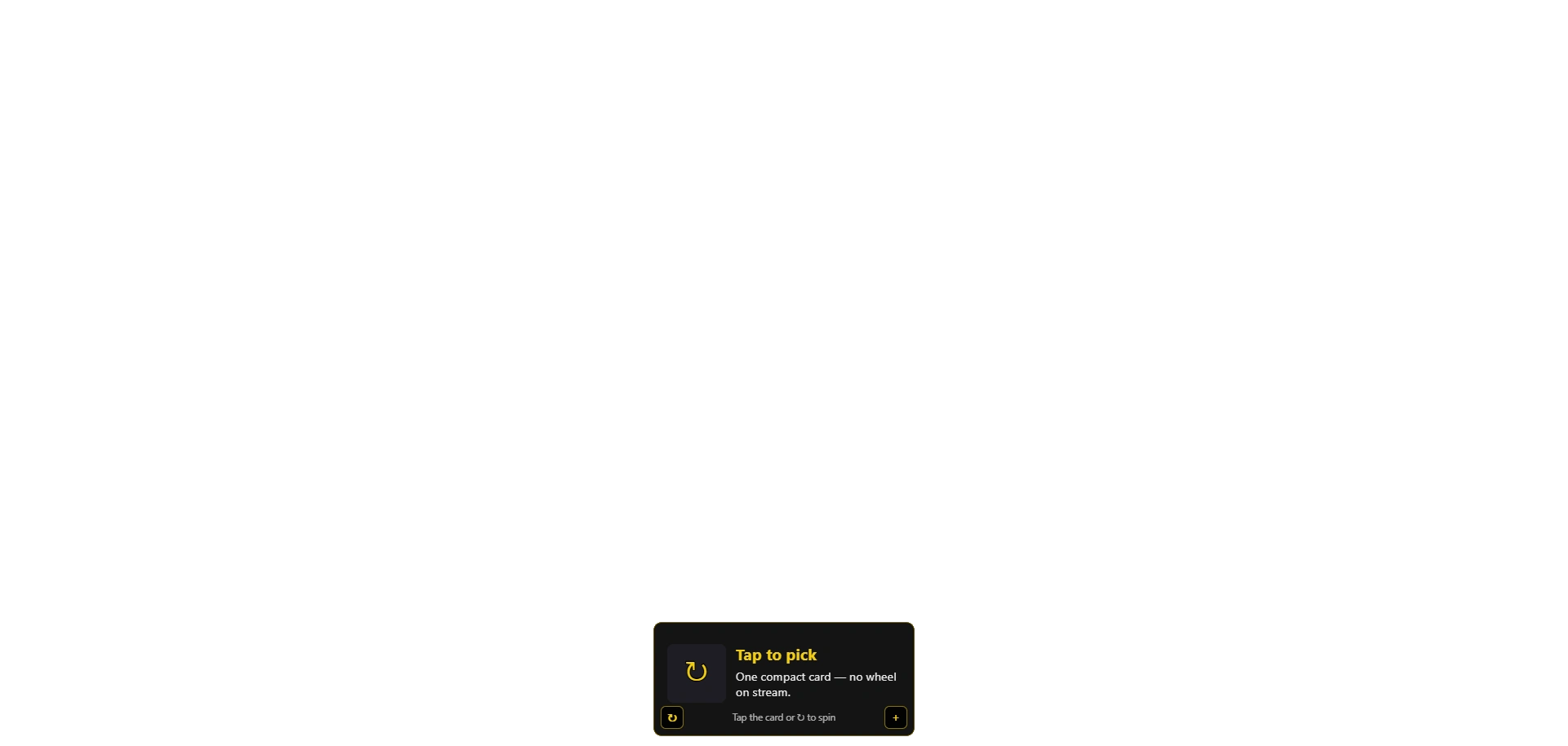 Screenshot29-view-deck.webp
Common OBS setups
index.html?ui=0&wheelPos=tc&cardPos=br
view. Source B: &view=preview&cardPos=… in a different corner.
index.html?ui=0&view=deck&cardPos=mm (add &set=chill etc. if needed).
View URL parameters
viewomitted: Wheel view (default)view=preview: Card view (result card only)view=deck: Deck view (picker card only)
Combine with ui=0 (hide nav on stream), set= (wheel set), and cardPos / wheelPos as needed. Copy the overlay URL from Setup and add params.
Testing in the browser
View buttons stay in the top bar until you add ?ui=0. Switch views before copying URLs for OBS.
Deck’s + switches back to Wheel view so you can edit options and layout without retyping the URL.
Add to OBS
Put the overlay on your scene as a Browser Source with a transparent background.
Before you add a source
-
Pick your URL
Overlay page: use
index.htmlon your site (or locally). Options are loaded from local storage in this browser.Copy the URL from Setup or your browser address bar; it includes
?set=when you are not on Default (e.g.?set=chaos). Add?ui=0for OBS (see below). -
Set layout in the browser first
Open the overlay, use Layout for wheel and card positions. For OBS reloads, you can lock positions in the URL:
wheelPos=tcandcardPos=bc(must be different cells).
Add Browser Source
-
Add source
In OBS: Sources → + → Browser.
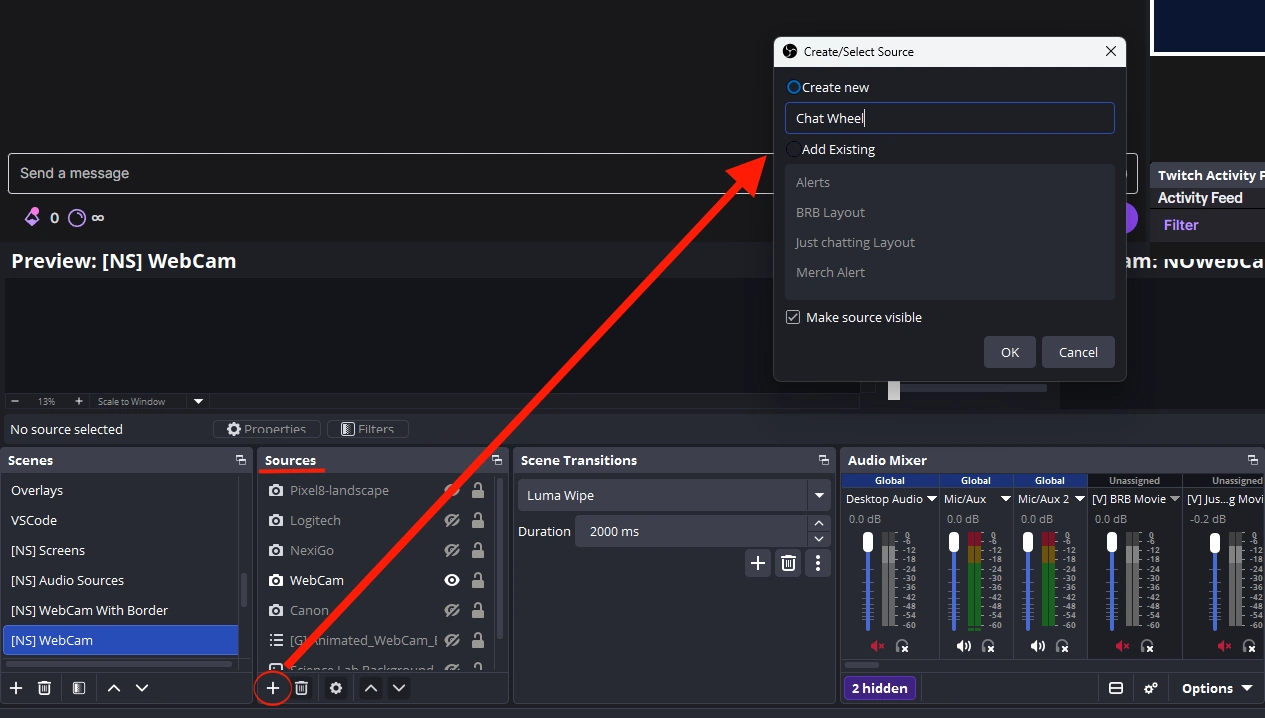 Screenshot20-obs-add-source.webp
 -
Paste URL
Paste the overlay page URL (e.g.
index.htmlon GitHub Pages). No secrets are required for the current local-storage build.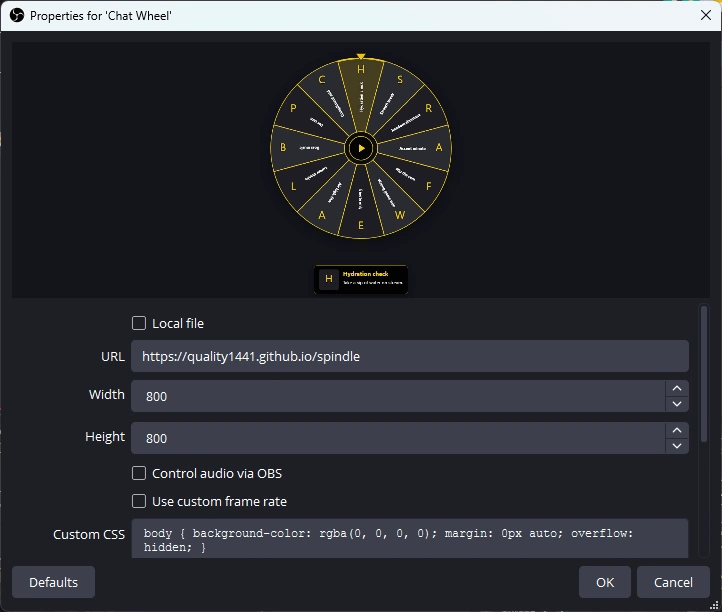 Screenshot21-obs-url-field.webp
 -
Size the source
Set width and height to about 800×800 (adjust to your scene). Scale in the scene so the wheel and card fit your layout.
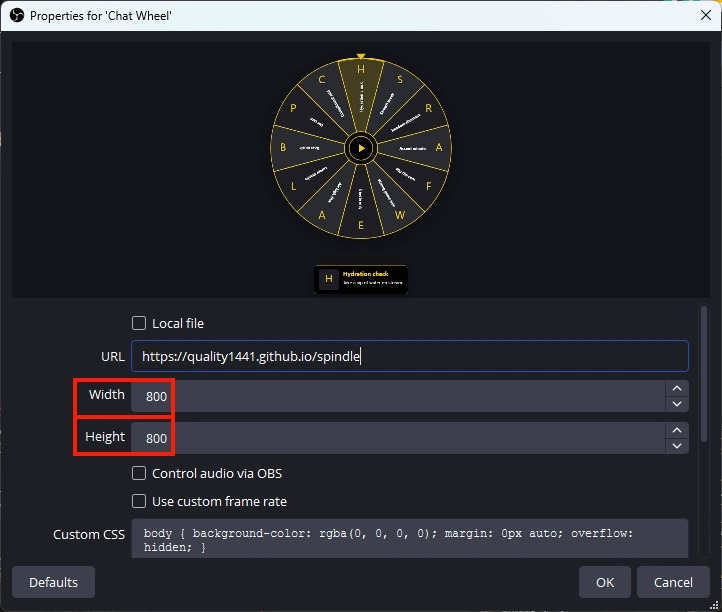 Screenshot22-obs-dimensions.webp
 -
Custom CSS (if needed)
If you see a solid box instead of transparency, paste docs/obs-browser-source-stream.css into the source Custom CSS field.
-
Performance
Check Shutdown source when not visible. Right-click the source → Refresh if the overlay gets stuck.
One Browser Source (usual setup)
Most streams use a single Browser Source. Add ?ui=0 to hide the top nav and footer on stream.
The wheel and result card appear together using your Layout positions (or wheelPos / cardPos in the URL).
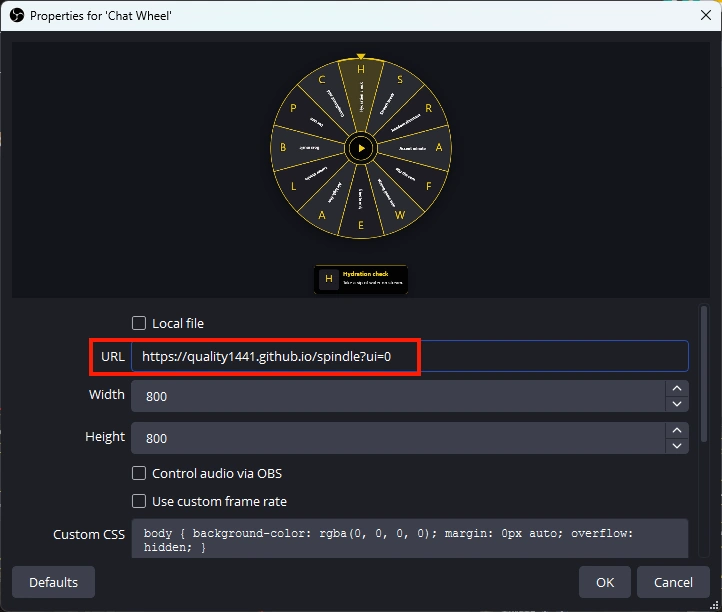
?ui=0: no top nav or footer on stream.Not sure which overlay view to use? See the Views tab (Wheel, Card, Deck) before you paste URLs into OBS.
Optional: two Browser Sources
If you want the wheel and card in different scene layers or positions, add a second Browser Source:
main URL on the first (Wheel view), and &view=preview&cardPos=… on the second. Details and examples are on the Views tab.
Other URL options
- Chroma key:
?chroma=1if you key out green instead of transparency. - Persist winner:
?cardPersist=1keeps the result on the card until the next spin.
URL examples
Example, wheel + card:
index.html?ui=0&wheelPos=tc&cardPos=br
More URL examples (Card and Deck views): Views tab.
URL parameters
Spindle does not use ?game= (that is for Challenge Wheel). View modes: Views tab.
set: wheel set id (e.g.chill,chaos); omitted for Defaultui=0: hide nav barwheelPos/cardPos: tl, tc, tr, ml, mm, mr, bl, bc, br (wheel and card cannot share the same cell in Wheel view)cardPersist=1: keep winner until next spinchroma=1: green background for chroma key
Troubleshooting
| Problem | Fix |
|---|---|
| Black or white box | Enable transparent background; paste custom CSS from docs/obs-browser-source-stream.css |
| Nav bar on stream | Add ?ui=0 |
| Wheel and card overlap | Use different layout cells or URL positions |
| Old options after editing | Refresh the browser source; confirm you edited in the same browser where data is saved |
| Source not updating | Right-click → Refresh; reopen overlay after clearing site data |
Platform integrations Coming soon
Spindle today is a browser + OBS tool: you edit wheel options locally, spin on the overlay, and show the result on stream. We are building optional connections so viewers can trigger spins from chat rewards, tips, and similar events without you clicking the wheel.
What we plan to add
- Hooks for major streaming and chat platforms (rewards, tips, and custom events)
- Secure cloud config so secrets and tokens never go in your OBS browser source URL
- A simulate panel in Setup to test spins before you go live
Integrations are not available in the current release. No platform login, API keys, or webhooks are required to use Spindle now.
What works today
- Edit sets and options on the overlay (Items) or Setup; auto-saved in this browser.
- Layout (wheel + card positions) saves in this browser when you use Layout.
- Card behavior (persist winner, hide wheel after spin): Save card settings on Setup.
- Spin manually from the wheel, deck card, or center play button on the overlay.
Engagement ideas (manual)
Run a “spin the wheel” segment when chat is hyped, switch to a Chill or Chaos set for different moods, or keep a custom set where you add a viewer’s idea in Items before the next spin.
Only list outcomes you are willing to do on camera. For OBS setup, see Add to OBS.